+91 9844254894 PrPreferred Mode of Communication: WhatsApp. weltraumsoft@gmail.com
Restaurant Management App • Waiter Ordering

Restaurant Management App — Touch & Keyboard Ordering

Take orders at the table on a tablet, or type them at a billing terminal — one app does both. Live table status, instant KOT to the kitchen, table split & transfer, billing and settlement, all synced with Weltraum POS.

Touch + Keyboard Modes Instant KOT Print Works on Offline LAN

Dine In, Takeaway, Home Delivery and Room Service counters in one screen — with Occupied / Unoccupied filters, running elapsed time per table, staff (steward, waiter, section) assignment and full settlement.
Restaurant app live table list showing Dine In AC, non-AC and takeaway tables with occupied and available status
Live table map — tap any table to open its order
Complete Feature List

Everything the Waiter App Can Do

Screens and operations taken straight from the running Weltraum POS waiter app — shown below exactly as they appear on the device.

Live Table Map

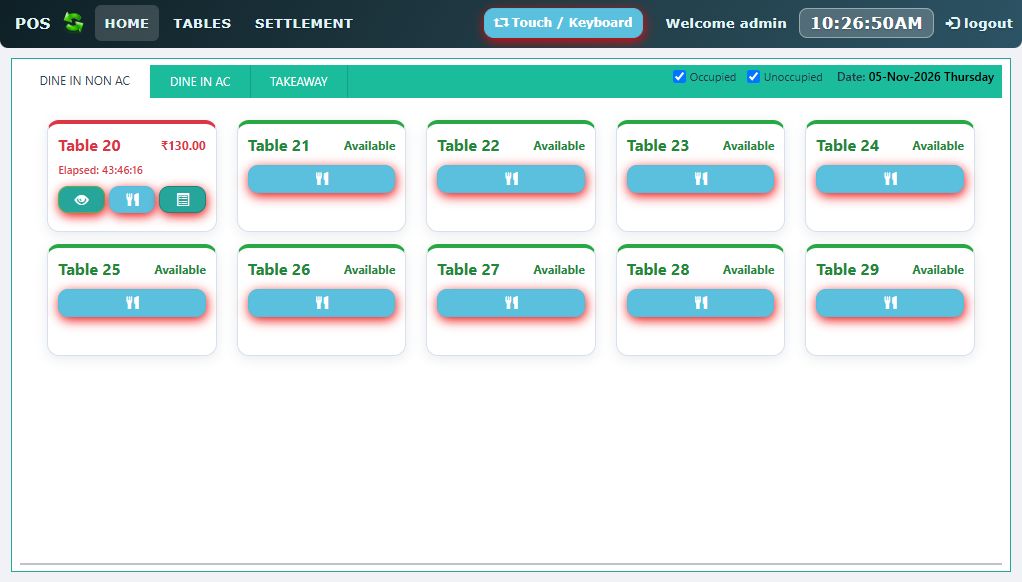
Every table as a card — Available or running its bill amount with elapsed time. Sections across Dine In Non-AC, Dine In AC and Takeaway tabs.

  • Occupied / Unoccupied filters
  • Elapsed time per open table
  • One-tap open, KOT or billing
  • Keyboard focusable — Enter / Space opens a table
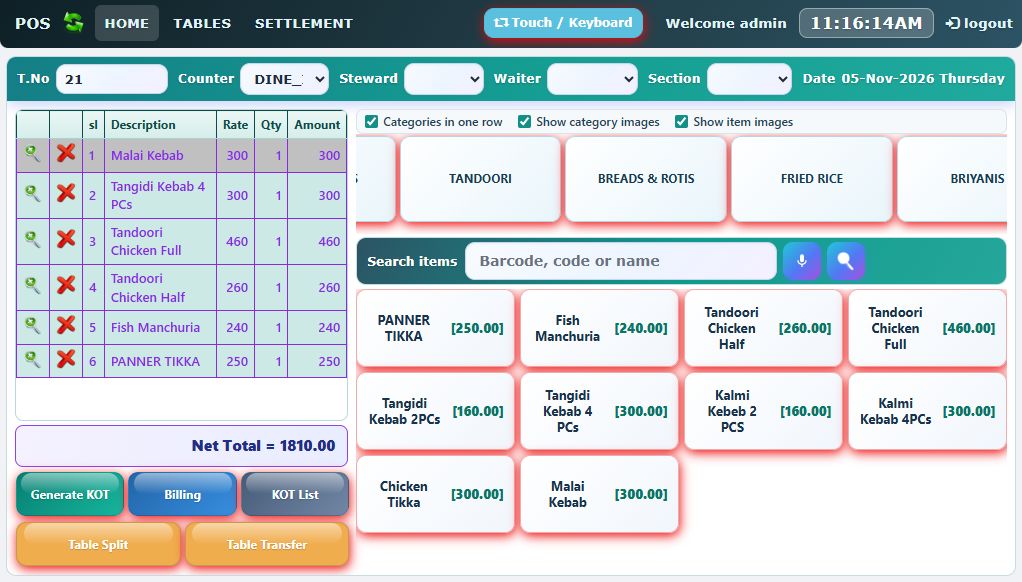
Touch Mode

Large category and item buttons built for tablets and waiter handhelds — big tap targets, no typing needed at the table.

  • Category grid (Soups, Starters, Biryani, Beverages…)
  • Item buttons with live price
  • Show item / category images toggle
  • Categories-in-one-row layout option
Keyboard Mode

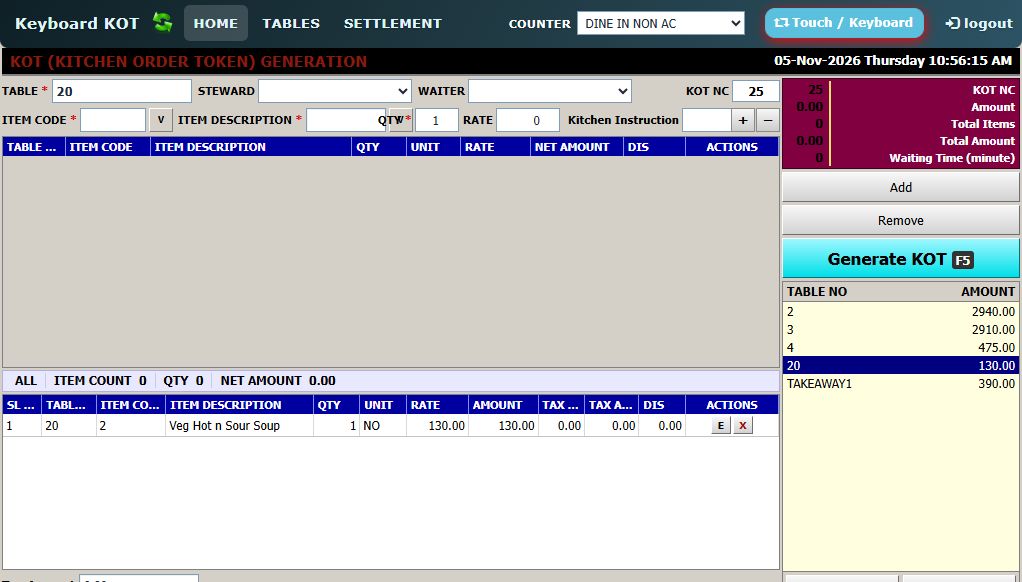
Fast key-driven entry for billing counters: item code, description, qty and rate fields with Add / Remove and function keys.

  • Generate KOT — F5
  • Bill — F2
  • Item code / description / qty / rate
  • Kitchen instruction per line
Table Split & Transfer

Move an order to another table, or split one order across several tables — without re-entering a single item.

  • Split by item or by amount
  • Transfer to any free table
  • Both actions from the order screen
Search — Code, Name or Voice

Find any menu item instantly by barcode, item code or name, with a voice-search button for hands-free lookup.

  • Barcode / code / name search
  • Voice search button
  • Instant filtered item buttons
Billing & Settlement

Print the bill, take cash or card, record the reference number and settle — with pending bills listed per counter.

  • Reprint KOT / Print Bill
  • Pay mode + reference number
  • Pending bill list per counter
Screens From The Live App

See Every Screen In Action

Real captures from the Weltraum POS waiter app — table list, ordering, KOT entry and settlement.

Restaurant app table list with dine in AC, non AC and takeaway tabs, occupied and unoccupied filters
1. Live Table List
Section tabs, Occupied / Unoccupied filters, running elapsed time, one-tap KOT and billing per table.
Touch ordering screen with menu categories, item buttons, search and generate KOT controls
2. Touch Ordering Screen
Category grid, priced item buttons, search, Generate KOT, Billing, KOT List, Table Split and Table Transfer.
Keyboard KOT generation screen with item code, quantity, rate fields and function key shortcuts
3. Keyboard KOT Entry
Key-driven KOT generation — item code, qty, rate, kitchen instruction, Generate KOT (F5) and Bill (F2).
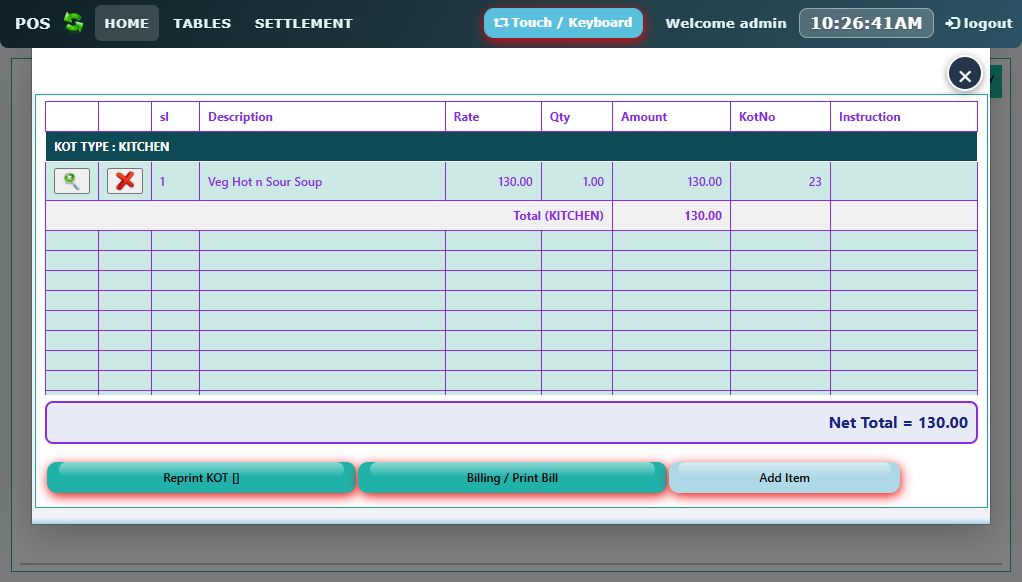
Open table order showing kitchen KOT lines with reprint KOT, billing and add item actions
4. Open Table — KOT Lines
Kitchen KOT lines with rate, qty, amount and KOT number, plus Reprint KOT, Billing / Print Bill and Add Item.
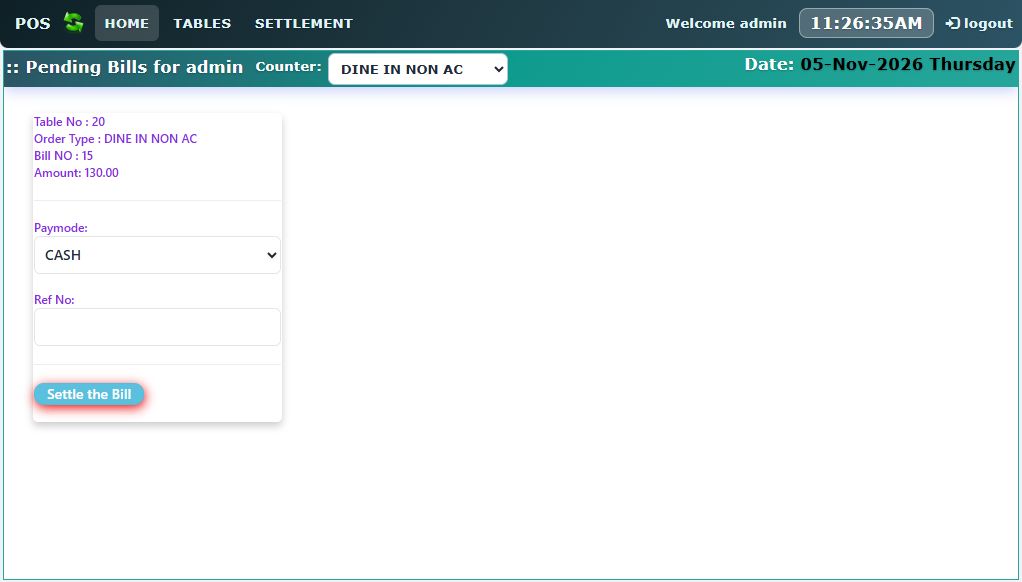
Settlement screen listing pending bills with pay mode, reference number and settle button
5. Settlement
Pending bills per counter with table, order type, bill number, amount, pay mode and reference number.
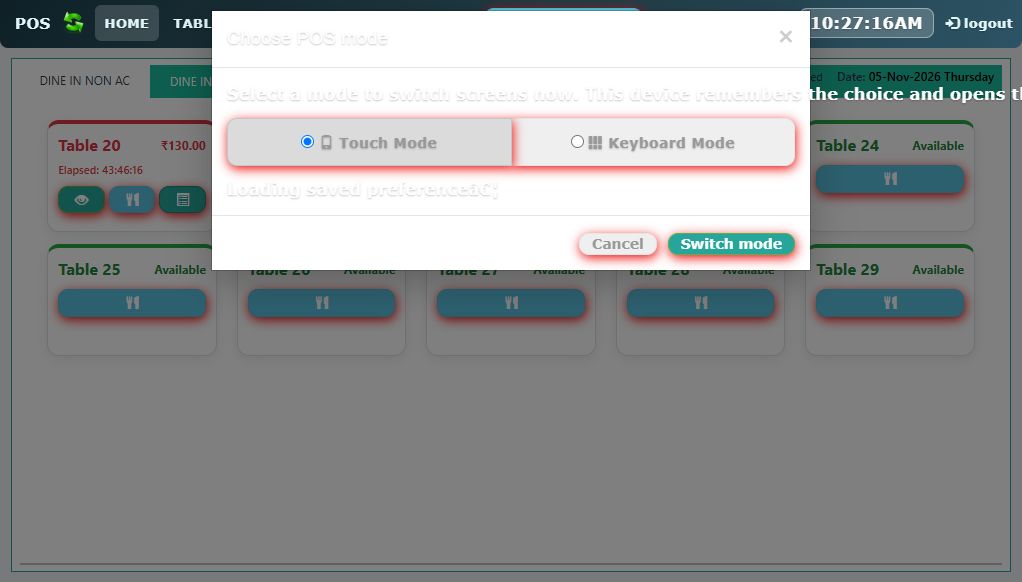
Touch or keyboard mode chooser dialog with switch mode button
6. Touch / Keyboard Switch
Choose the entry mode per device — the app remembers it and opens the same screen next login.
Two Ways To Work

Touch or Keyboard — Same Data

Switch modes from the top bar at any time. Both write to the same orders, KOTs and bills, so staff can mix devices freely.

Operation Touch Mode Keyboard Mode
Best deviceTablet, handheld, self-order kioskBilling desktop, POS terminal
Pick an itemTap category then tap the item buttonType item code or description
QuantityTap qty stepper (+ / −)Type qty, Tab to next field
Find an itemSearch box, voice search, item imagesBarcode scan or code entry
Kitchen orderGenerate KOT buttonGenerate KOT — F5
Print billBilling buttonBill — F2
Open a tableTap the table cardTab to card, press Enter / Space
Split / transferTable Split & Table Transfer buttonsTable Split & Table Transfer buttons
Remembered?Yes — the device remembers the mode and reopens it at next login
How It Runs

The Waiter Flow — 5 Steps

1

Tap table → take order

2

Generate KOT → prints in kitchen

3

Add, split or transfer tables

4

Bill & settle — cash or card

5

Syncs to POS reports

Staff & Section Handling

Before the order is taken, the app records who is serving: counter, steward, waiter and section — so KOTs and reports always show the right name.

  • Counter: Dine In Non-AC, Dine In AC, Takeaway, Home Delivery, Room Service
  • Steward: assigned per order for accountability
  • Waiter: named waiter on every KOT and bill
  • Section: kitchen sections such as Kitchen, Juice — routes the KOT correctly
Runs Offline On Your LAN

The app talks to your local server, so ordering and kitchen printing keep working even when the internet goes down — and syncs with Weltraum POS the moment it is back.

  • Wi-Fi or wired LAN — no internet required
  • Android 5+ tablets and Windows terminals
  • Same data as Weltraum POS desktop
  • Kitchen printer / KDS output from the same KOT
Questions

Restaurant App FAQ

Yes. The Touch / Keyboard switch in the top bar opens either the touch ordering screen for tablets or the keyboard KOT entry screen for desktop terminals. The device remembers the choice and opens the same screen at the next login.

No. It runs on your local network, so table status, KOT printing and billing continue during an internet outage and stay in sync with Weltraum POS.

Yes. Table Split divides one order across multiple tables and Table Transfer moves it to another table — both available directly from the order screen, with no re-entry of items.

Yes. Open the occupied table to get Reprint KOT, Billing / Print Bill and Add Item for that table, with the kitchen KOT lines, rates and KOT numbers shown.

The Settlement screen lists pending bills per counter with table, order type, bill number and amount. Choose the pay mode (cash, card, UPI…), enter the reference number and settle — the bill closes and appears in reports.
Chat on WhatsApp